You’ve got a built web app — maybe a React dashboard, a little browser game, or something an AI tool generated for you. This guide takes it from a folder on your computer to a live URL on your WordPress site. Start to finish, it’s about a minute.
If you haven’t installed the plugin yet, do that first: How to install App To Page.
Step 1: Zip your build
App To Page serves the built version of your app — the output folder, not your source code. If you
built your app yourself, that’s the dist/ folder (or build/) your tools produced. If an AI tool
made your app, it’s whatever folder has an index.html at the top.
If you still need to build it, run your build command first:
npm run buildThe one rule that matters: index.html must sit at the top of the zip, not inside an extra
folder. So zip the contents of dist/, not the dist folder itself. From a terminal:
cd distzip -r ../my-app.zip .Or, in your file manager, open the dist folder, select everything inside it, and compress the
selection. You should end up with a .zip that has index.html right at its root.
Note: If you zip the folder itself, your app will land at a nested path and show a blank page. If that happens, see Troubleshooting — the fix is a 30-second re-zip.
Step 2: Upload your app to WordPress
In your dashboard, go to App To Page » Apps. You’ll see a single upload area — no “Add New,” no
extra screens. Drag your .zip onto the dropzone, or click it to choose the file.

App To Page reads the zip and shows a confirmation card so you can set a few things before it goes anywhere.
Step 3: Name it and pick a URL
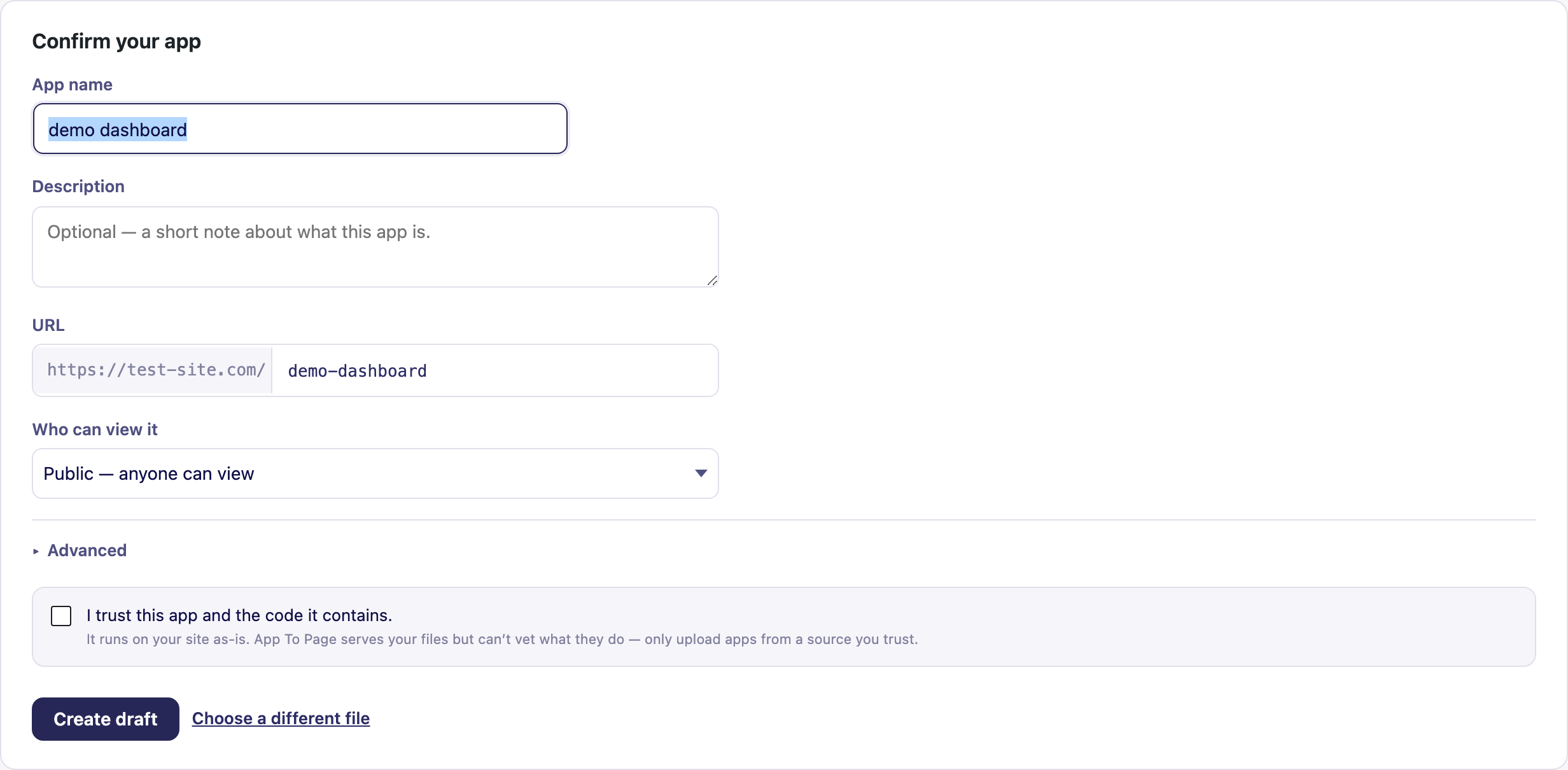
App To Page shows a Confirm your app card. Here’s what to set:
- App name — for your reference in the dashboard (it’s filled in from your file name).
- Description — optional; a short note about what the app is.
- URL — where the app will live, like
demo-dashboard. This is the address people visit:your-site.com/demo-dashboard. - Who can view it — Public (anyone) or Logged-in only (visitors sign in first). You can change this later; see Set an app’s visibility.
- Advanced » Single-page app fallback — leave this on if your app uses client-side routing (most
React, Vue, and Svelte apps do). It routes unknown paths back to your
index.htmlso deep links and refreshes don’t 404.
Finally, tick “I trust this app and the code it contains.” App To Page serves your files as-is and can’t vet what they do, so this is a nudge to only upload apps from a source you trust.
Step 4: Create a draft and preview it privately
Click Create draft. Your app is now uploaded, but it’s private — only you can see it. Click Preview to open it at its URL and make sure it runs exactly like it does on your machine.
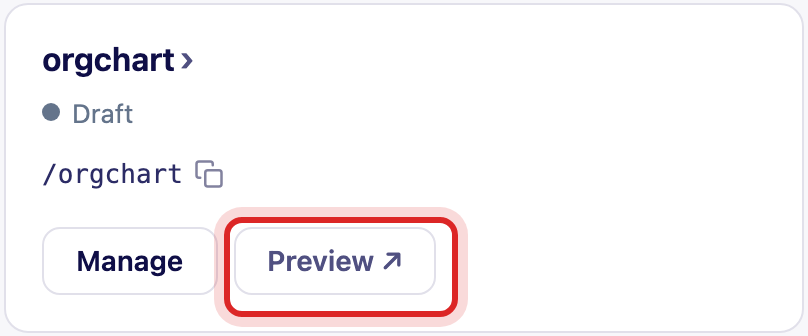
This private preview is the safety net: check that your app loads, click around, and confirm nothing’s broken before the world sees it.
Step 5: Publish
Happy with it? Click Publish. Your app is now live at your-site.com/my-app for anyone to visit —
rendered on its own, with no theme wrapper around it.
That’s it — your first app is live. Changed your mind? You can unpublish it just as easily, and it drops back to a private draft.
What’s next?
- Update an app in place — ship a new build without changing the URL.
- The AI build kit — get your AI tool to produce an upload-ready build every time.
- How App To Page works — what’s happening behind the scenes.
Frequently asked questions
Does App To Page build my app for me?
No — it hosts the finished build. You build your app (or export it from your AI tool), zip the output, and upload it. Nothing gets compiled on the server, which is exactly why it runs on ordinary hosting.
What frameworks does it support?
Any browser-only build: Vite, React, Vue, Svelte, or plain HTML, CSS, and JavaScript. If it runs in a browser from static files, App To Page can serve it. See the app guides for framework-specific tips.
Where do my uploaded app files go?
They’re stored in your site’s uploads area and served straight from there at the URL you chose. Your theme and the rest of your WordPress site are untouched.
Can I change the URL after publishing?
The URL is set when you create the app. To move an app to a new address, upload it again at the new URL. To ship a new build at the same URL, use Update an app in place.
Why is my app showing a blank page?
The most common cause is a zip with an extra wrapping folder, or a build that isn’t using relative paths. Both are quick fixes — see Troubleshooting.