Instead of downloading a .zip and uploading it by hand, you can point App To Page at a GitHub
repository and have it pull the build for you. It’s the same result — your app live at a URL — but
updates become a single click instead of a re-upload.
App To Page serves a built app, so it pulls from one of two places in your repo:
- a Release that has a built
.zipattached as an asset, or - a branch that already contains the built files.
It doesn’t run your build on GitHub — it fetches files that are already built.
Step 1: Connect your GitHub account
You only do this once. Go to App To Page » Settings and find the GitHub section. It walks you through two quick steps:
- Choose repositories. Click Choose repositories on GitHub — a new tab opens where you pick which repos App To Page can read. It only ever asks for read-only access, and you can allow all your repositories or just specific ones.
- Connect your account. Back in WordPress, click Connect GitHub and authorize it with the one-time code (a new tab opens to GitHub). Prefer to set it up by hand? Expand Or use a personal access token and paste a token instead.
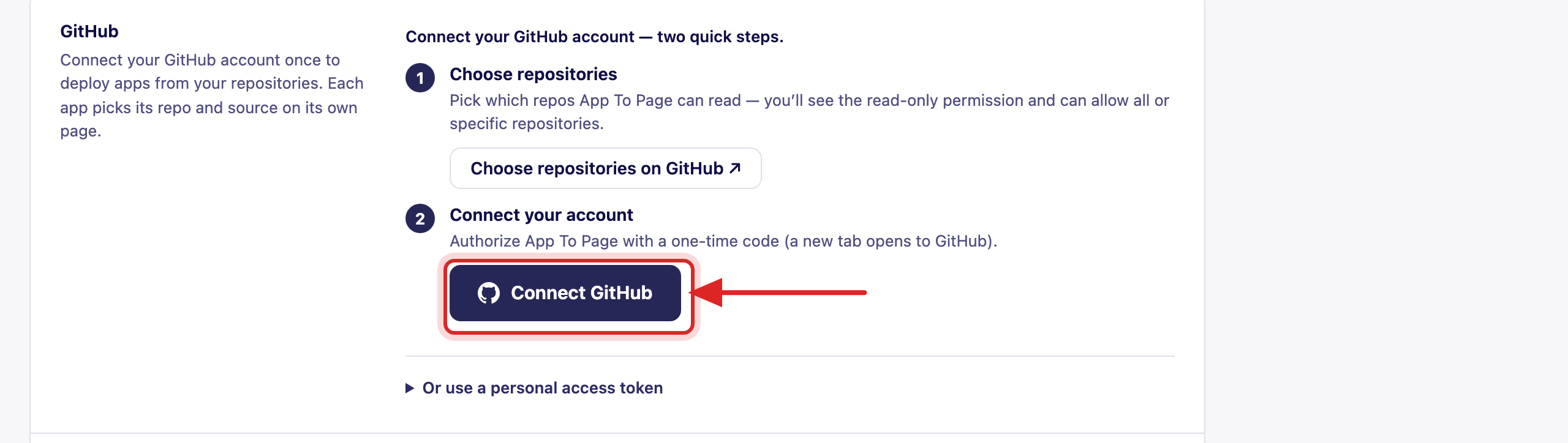
Once you’re connected, this same section shows your GitHub username and a Manage which repositories App To Page can access link, so you can add or remove repos anytime.
Step 2: Deploy an app from your repo
Go to App To Page » Apps and switch to the From GitHub tab.
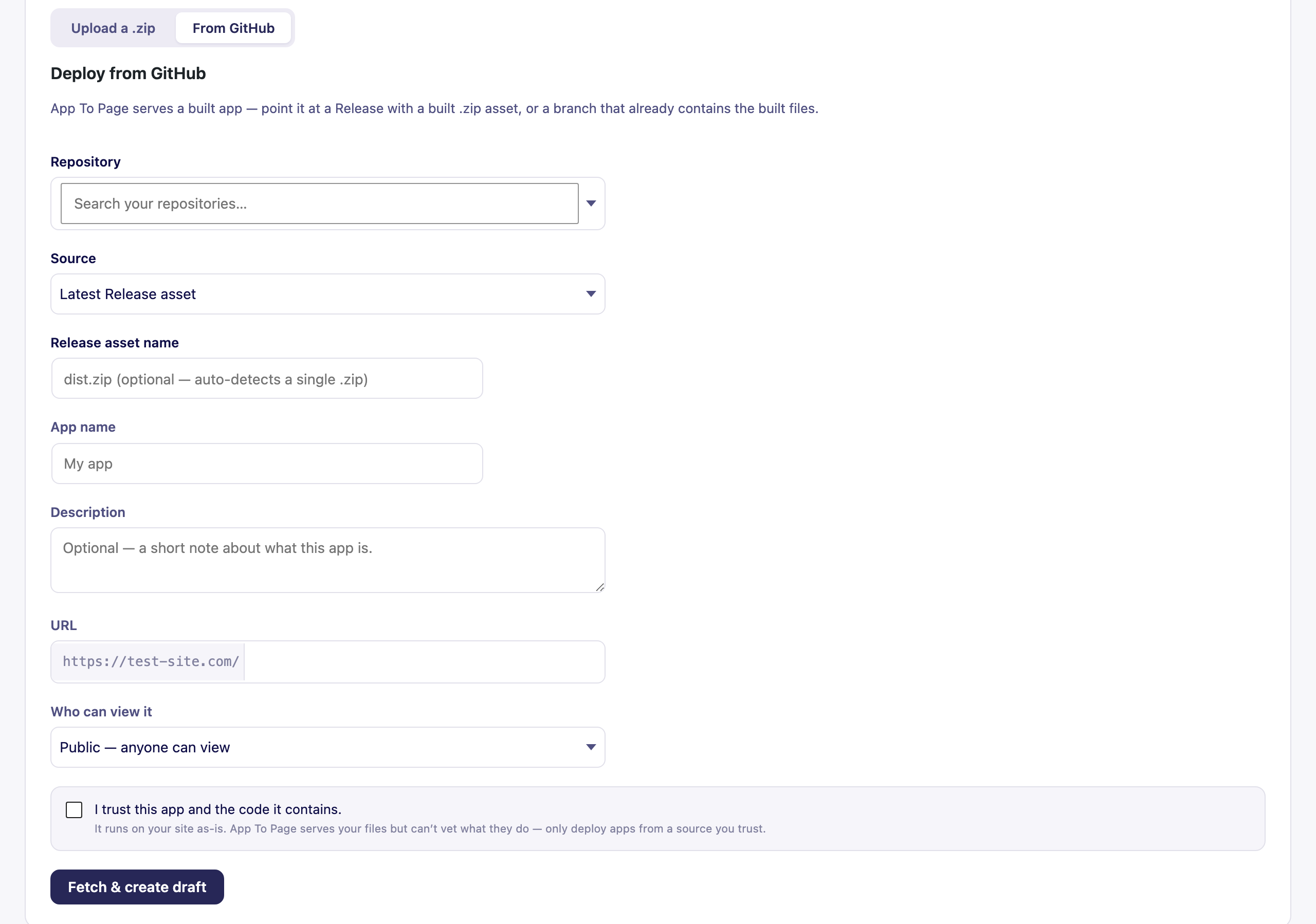
Fill in the form:
- Repository — search and pick one of your connected repos.
- Source — choose where the build comes from:
- Latest Release asset — the built
.zipattached to your newest GitHub Release. - A branch — a branch that already contains the built files.
- Latest Release asset — the built
- Release asset name — optional. Leave it blank to auto-detect a single
.zip, or name it (likedist.zip) if your Release has more than one asset. - App name, Description, URL, and Who can view it — same as a normal upload.
Tick the trust checkbox, then click Fetch & create draft. App To Page pulls the build, creates a private draft, and you can Preview and Publish exactly like an uploaded app.
Updating an app from GitHub
Once an app is connected to a repo, you don’t re-upload to ship changes. Open the app’s Manage page and use its GitHub section to pull the latest build on demand — App To Page fetches the newest Release asset (or branch files) and updates the app in place, keeping its URL, status, and visibility.
A good repo setup
The smoothest workflow is to attach a built .zip to each GitHub Release:
- Build your app (
npm run build). - Zip the contents of
dist/soindex.htmlis at the top. - Create a GitHub Release and upload that
.zipas a release asset.
Then, in App To Page, set the source to Latest Release asset and every new Release is one click to deploy.
Frequently asked questions
Does App To Page build my app from source on GitHub?
No. It serves a built app, so it pulls files that are already built — a Release’s .zip asset or a
branch that contains the build output. Do the build in your own workflow (locally or in GitHub
Actions), then point App To Page at the result.
Do I need to reconnect GitHub for every app?
No. You connect your account once in Settings. After that, each app picks its own repository and source on its own page.
Can I limit which repositories it can access?
Yes. When you connect, you choose which repos App To Page can see, and you can change that anytime from the Manage which repositories link in Settings.
How do I ship an update from GitHub?
Open the app’s Manage page and pull the latest build from its GitHub section. The app updates in place — same URL, same visibility.